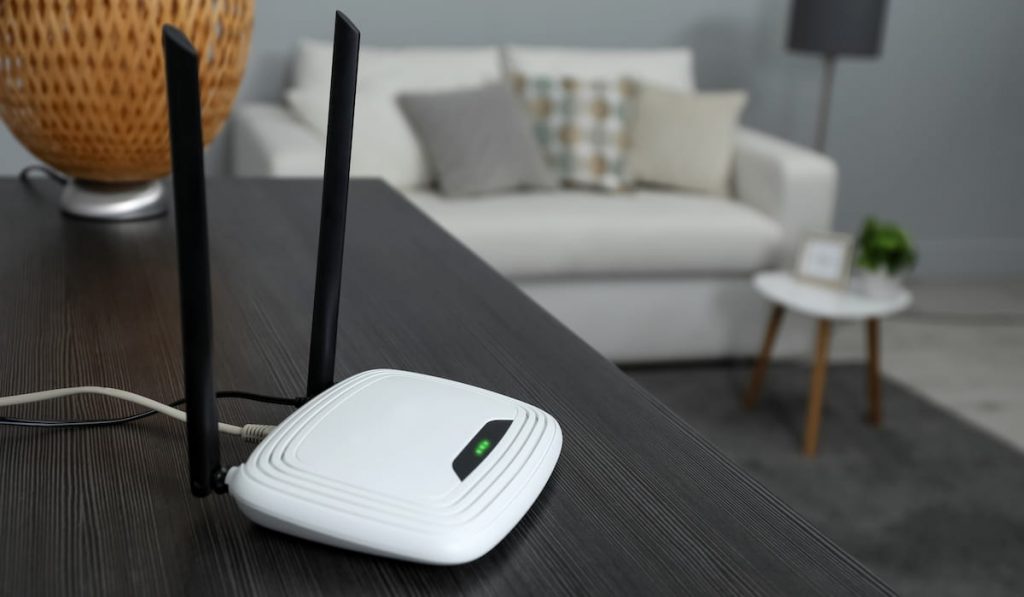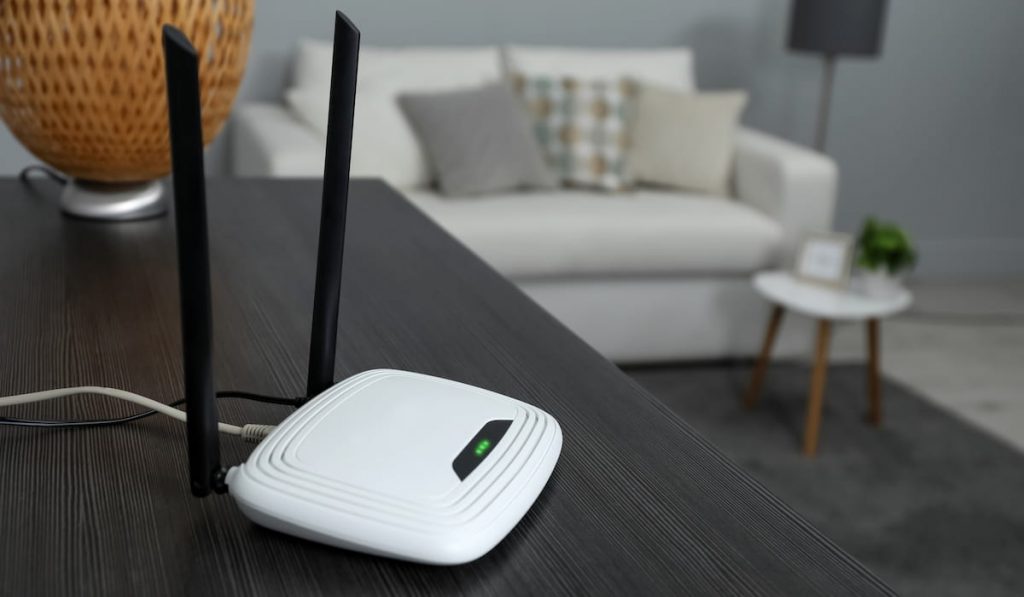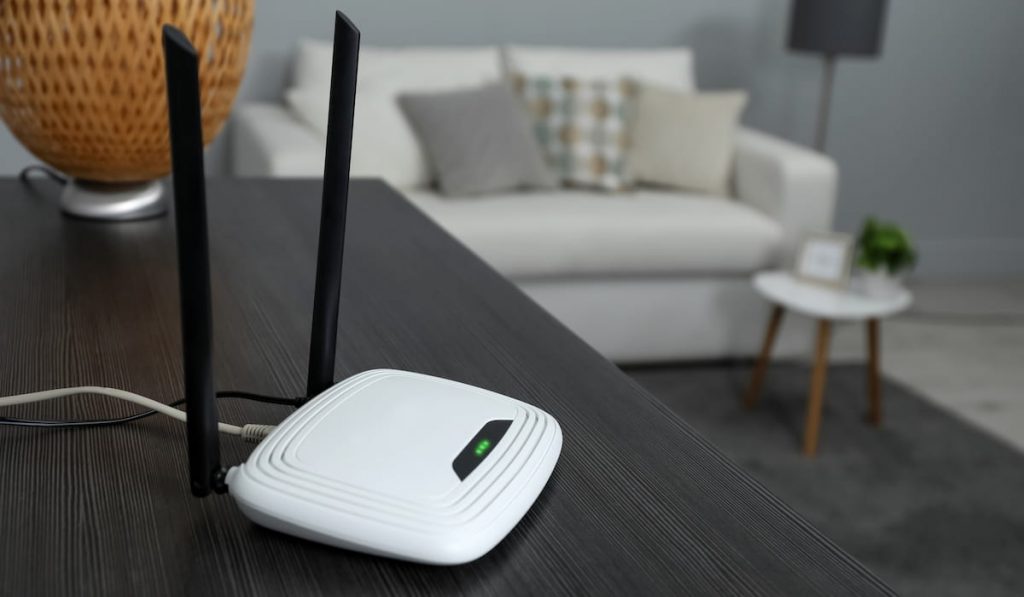
A suddenly slow connection, data finishing early, or the router light blinking when nobody is home — all classic signs a neighbour or an old forgotten device is on your Wi-Fi. Every router keeps a list of exactly who is connected. Here is how to read that list and lock your network down properly.
1. Log in to your router
Connect to your Wi-Fi, open a browser and go to 192.168.1.1 (some routers use 192.168.0.1 or 192.168.10.1 — it is printed on the sticker under the router, along with the default username/password, often admin/admin). Sign in. If the default password was never changed, change it today — an open admin panel undoes every other step below.
2. Find the connected devices list
Look for a section called Attached Devices, DHCP Clients, Connected Devices or LAN Status (on PTCL routers: Status → LAN or Advanced → DHCP). You will see each device's name, IP address and MAC address — a code like A4:5E:60:xx:xx:xx. Count the devices: phones, laptops, TV, tablets in your home. Any extra entry deserves suspicion.
3. Identify your own devices first
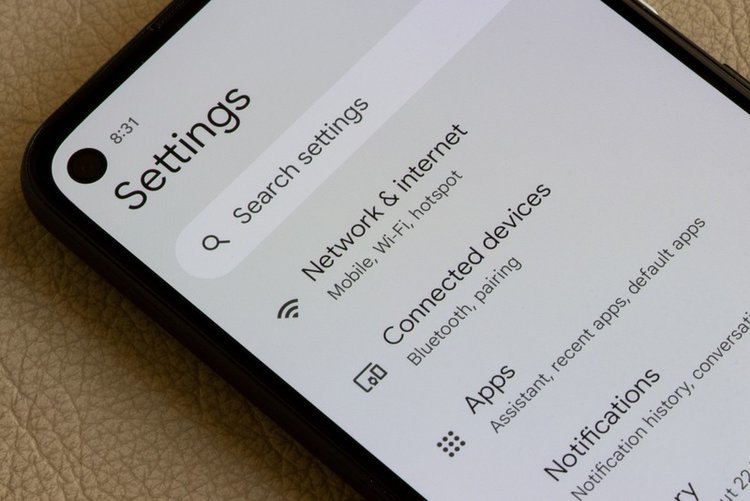
Do not block blindly — smart TVs, a sibling's phone and your own second phone all look like strangers here. Find each of your devices' MAC addresses (Android: Settings → About phone → Status; iPhone: Settings → General → About → Wi-Fi Address) and match them against the list. Easiest test: turn off Wi-Fi on one device and watch its entry disappear from the list after a refresh.
4. The most reliable fix: change the Wi-Fi password
Honestly, blocking individual devices is a game of whack-a-mole. The clean fix is a new, strong Wi-Fi password (12+ characters, not your phone number or CNIC) set to WPA2/WPA3 security — everyone is kicked off instantly, and only people you give the new password to can return. Reconnect your own devices once, and the problem is permanently solved. Do this first; use blocking below only as an addition.
5. Block a specific device (MAC filtering)
Still want a specific device banned? In the router's Wireless → MAC Filtering / Access Control section, add the unknown device's MAC address to the block/deny list and save. Be careful to choose "deny listed devices" mode — choosing "allow only listed" mode with an incomplete list will lock your own devices out too.
6. Stop it happening again
Turn off WPS in the wireless settings (its PIN method is famously easy to crack), keep the router firmware updated if your provider offers updates, and never share the password in writing to visitors — create a guest network instead if your router supports it. Review the connected list once a month; it takes two minutes.
Frequently asked questions
Can I see the names of devices using my Wi-Fi?
You see device names (when they broadcast one), IP and MAC addresses. Names are often cryptic, so identify devices by matching MAC addresses or by switching devices off one by one.
Someone knows my password. Is MAC blocking enough?
No — change the Wi-Fi password. Blocking one MAC does not stop the same person connecting from another device, and MAC addresses can be spoofed.
Will changing the Wi-Fi password disconnect my own devices?
Yes, all at once — that is the point. Reconnect each of your devices with the new password; it is a one-time five-minute job.