Before paying for a bigger package or a new router, work through this list. In most homes, the internet line itself is fine — the Wi-Fi inside the house is the problem.
1. Put the router in the right place
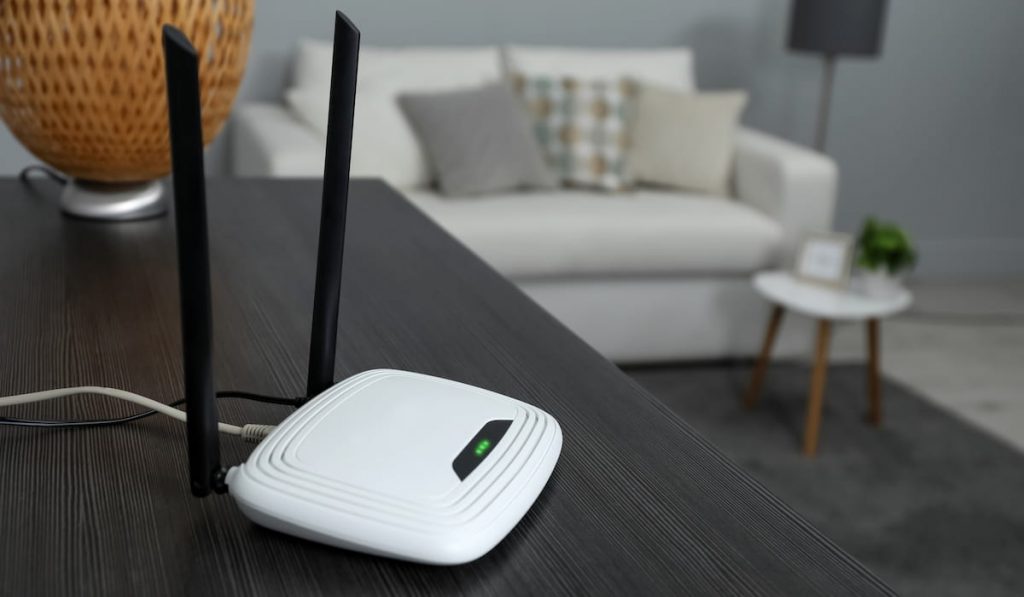
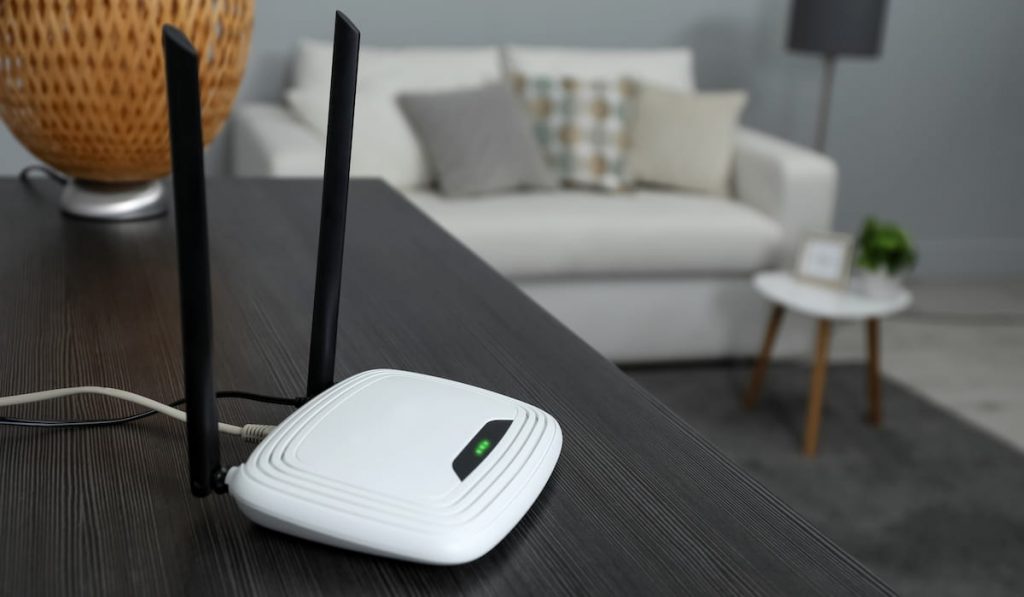
Wi-Fi spreads out and down from the router like light from a bulb. Best position: centre of the home, on a shelf about chest-high, in the open. Worst positions: on the floor, inside a TV cabinet, behind the fridge, or in a corner room. Moving a router from a corner to the centre fixes more "slow internet" complaints than any other step.
2. Restart the router properly
Unplug the power for a full 30 seconds, then plug it back in and wait 3 minutes. Routers are small computers — after weeks of running, a restart clears memory leaks and reconnects at a better speed.
3. Use the 5 GHz band for speed, 2.4 GHz for range
Most modern routers broadcast two networks. 5 GHz = much faster, shorter range — use it in the same/nearby room. 2.4 GHz = slower, travels through walls — use it for far rooms. If your router shows only one name, check its settings for "band steering" or separate the bands manually.
4. Change the Wi-Fi channel
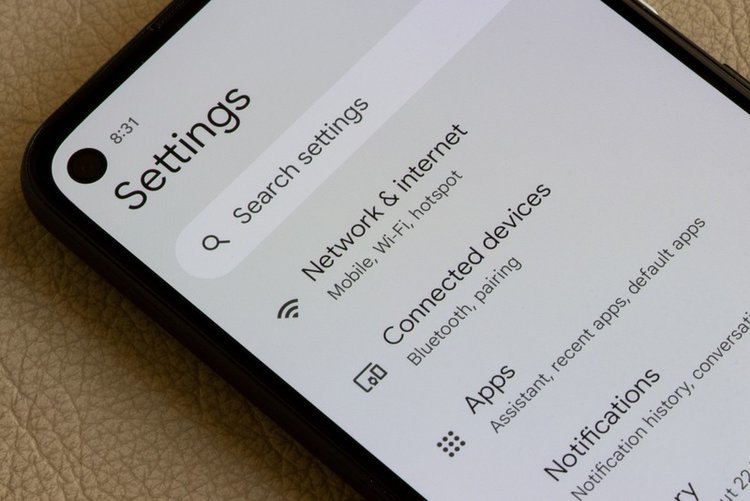
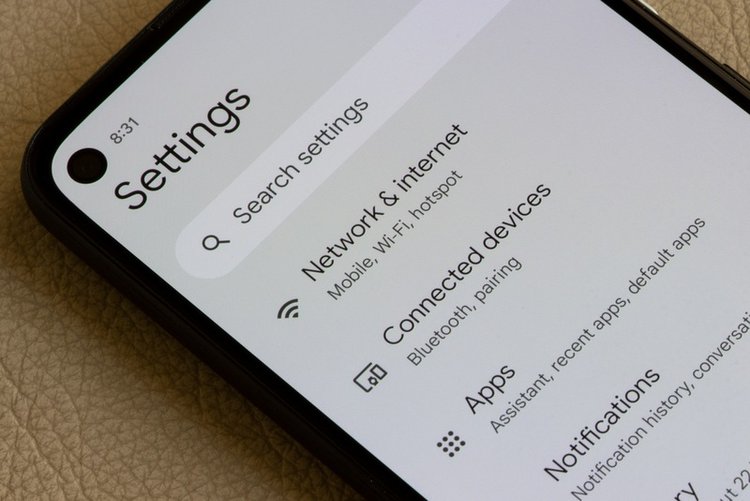
In flats and dense areas, every neighbour's router fights for the same channels. Install a free "WiFi Analyzer" app, see which 2.4 GHz channel (1, 6 or 11) is least crowded, and set it in your router settings page (usually 192.168.1.1 or 192.168.0.1 in a browser).
5. Disconnect freeloaders and old devices
Open your router's device list. Unknown devices connected? Change the Wi-Fi password today (WPA2/WPA3 security, not WPS) — shared passwords spread fast. Old phones and smart bulbs on 2.4 GHz also slow that band for everyone.
6. Update the router firmware
On the router settings page, look for Firmware Update. Updates fix bugs and sometimes add real speed and stability — and they patch security holes.
7. Limit heavy downloads during calls/classes
One laptop downloading a game can starve a Zoom class. Many routers have QoS settings — enable it and prioritise your work laptop/phone. Cheaper alternative: schedule big downloads for night.
8. Add a mesh/extender — only after steps 1–4
For a big or two-storey home, one router cannot cover everything. A mesh kit (2 units) beats a cheap extender because devices hand over smoothly. Place the second unit halfway between the router and the dead zone — not inside the dead zone itself.
Frequently asked questions
My package is 30 Mbps but I get 8 Mbps. Why?
Either the line is underperforming, or Wi-Fi loss. Test with a laptop plugged in by cable: if cable gives ~30, your Wi-Fi setup is the problem — work through this guide. If cable also gives 8, call your provider with that test result.
Does a more expensive router double speed?
Only if your current router is old (Wi-Fi 4) or faulty. A Wi-Fi 6 router helps busy homes with many devices, but it cannot beat bad placement — fix position and channels first, free.
How often should I restart the router?
Once a month is a good habit, or whenever speeds drop suddenly. Many routers can be set to auto-restart weekly at night.