Apps opening slowly? Screen freezing when you switch between WhatsApp and the camera? Before you think about buying a new phone, try these fixes. On a typical 3-year-old phone with 4 GB RAM, doing all ten takes about 15 minutes — and the difference in app opening speed is noticeable the same day.
1. Restart the phone (yes, really)
A restart clears temporary memory (RAM) and stops stuck background processes. Hold the power button, tap Restart, and wait. Do this once a week and many small slowdowns never appear at all.
2. Free up storage — keep at least 15% empty
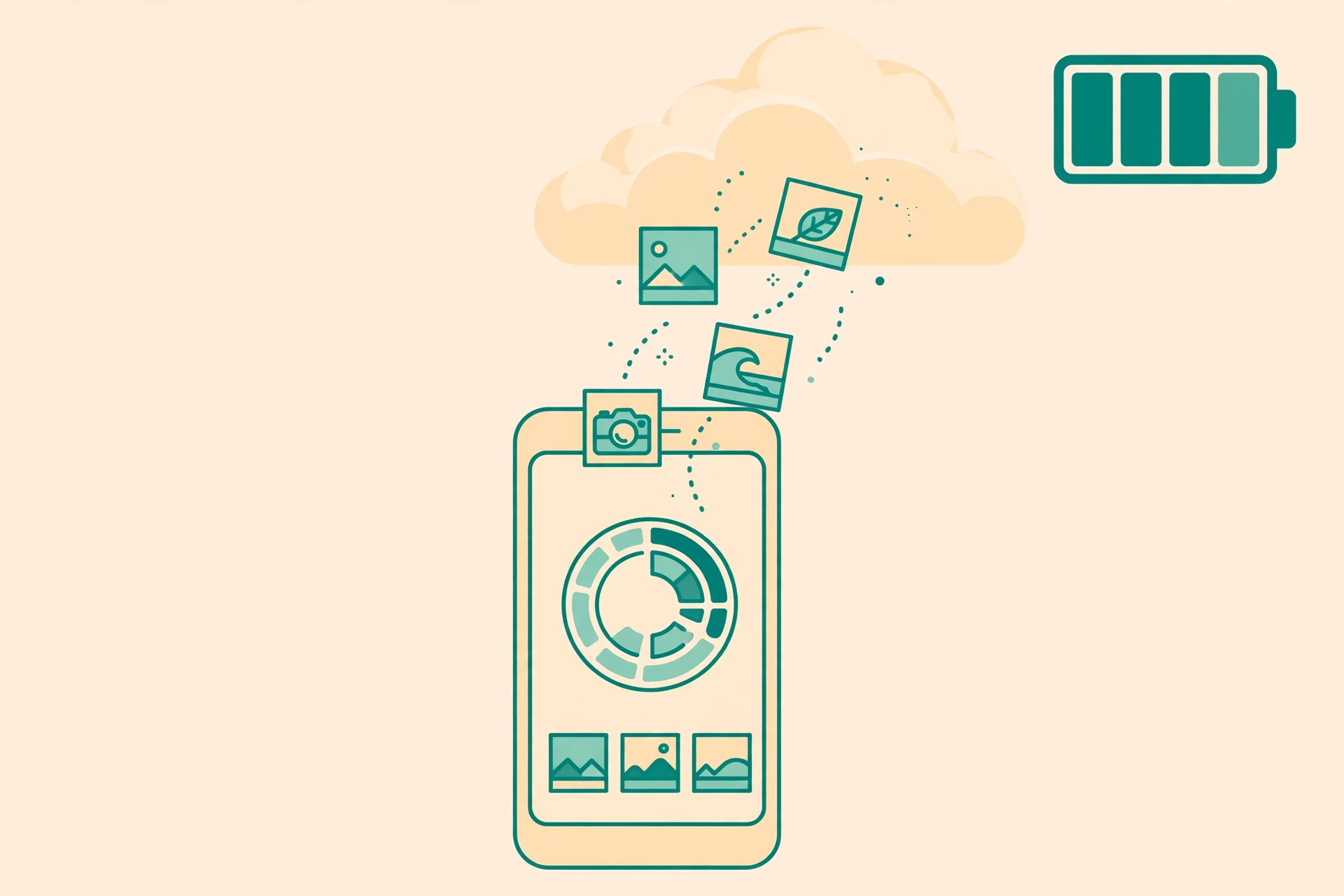
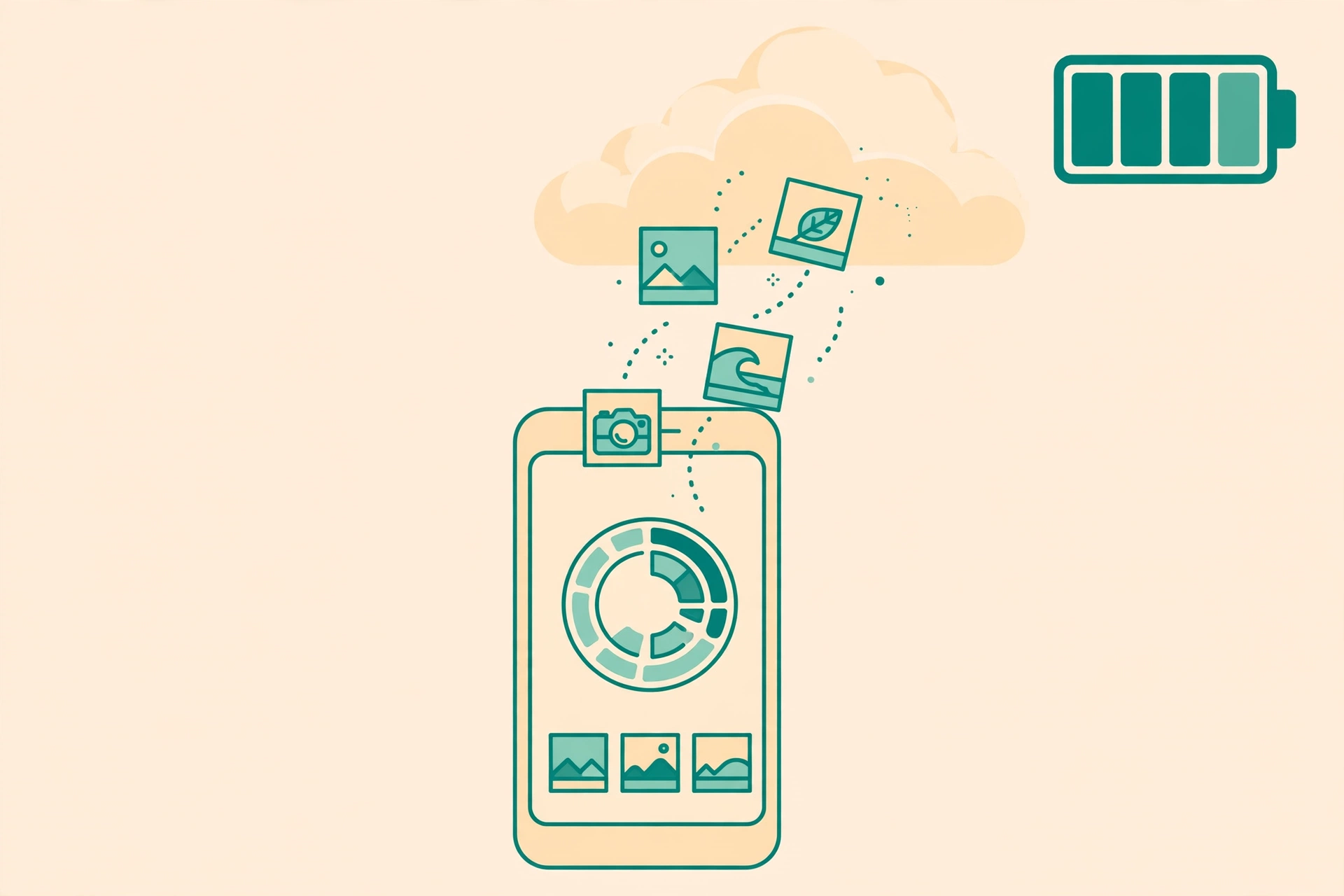
Android slows down badly when storage is almost full. Go to Settings → Storage. If less than 15% is free, the phone has no room to work. Delete downloaded videos you no longer need, clear old WhatsApp media from WhatsApp → Settings → Storage and data → Manage storage, and move photos to Google Photos backup.
3. Clear cache for the heaviest apps
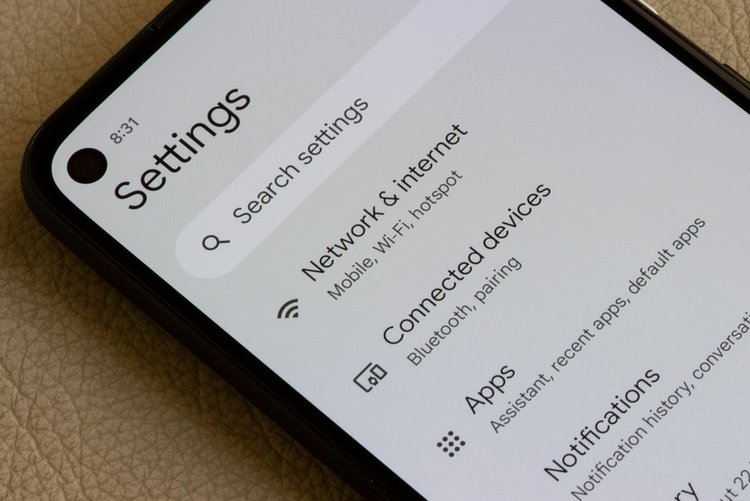
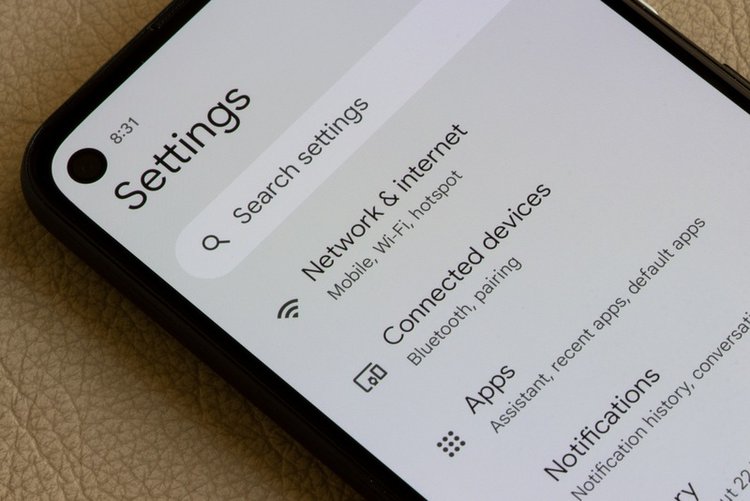
Go to Settings → Apps → See all apps, open Facebook, TikTok, Chrome or Instagram, tap Storage & cache → Clear cache. This removes temporary files only — your account and data stay safe. Do not tap "Clear storage" unless you want to log in again.
4. Uninstall apps you have not opened in a month
Every installed app can run background work. Long-press an app icon → App info → Uninstall. Games and shopping apps you used once are the usual culprits.
5. Turn off auto-start and background use for heavy apps
On Xiaomi, Oppo, Vivo and Infinix phones, open the built-in Security / Phone Manager app and remove heavy apps from auto-start. On Samsung and Pixel: Settings → Battery → Background usage limits, and put rarely used apps to sleep.
6. Reduce animations
This makes the phone feel faster instantly. Enable Developer options (tap Build number 7 times in About phone), then set Window animation scale, Transition animation scale and Animator duration scale to 0.5x.
7. Update the phone and your apps
Go to Settings → Software update and install any pending update — these often include performance fixes. Then open Play Store → your profile → Manage apps & device → Update all.
8. Replace heavy apps with Lite versions
Facebook Lite, Messenger Lite and Google Maps Go do the same job with a fraction of the memory. On a low-RAM phone, this single change can end the freezing.
9. Check for a misbehaving app in Safe Mode
Hold the power button, long-press Power off, and tap Safe mode. If the phone runs fast in Safe Mode, a recently installed app is the problem. Restart normally and uninstall your newest apps one by one.
10. Last resort: factory reset — with a full backup
If nothing works, back up everything (Google One backup + WhatsApp chat backup), then go to Settings → System → Reset → Erase all data. A clean phone with only the apps you actually use is faster than any "booster" app.
Frequently asked questions
Why is my phone slow after an update?
A big update re-indexes files and updates apps in the background for a day or two. Restart the phone, keep it charging overnight on Wi-Fi, and judge the speed after 48 hours.
Will clearing cache delete my photos or chats?
No. Cache is temporary data only. Your photos, chats and accounts are untouched. Avoid 'Clear storage' on WhatsApp unless you have a chat backup.
How much free storage should I keep?
Keep at least 15% of total storage free — on a 64 GB phone that is roughly 10 GB. Below that, Android cannot manage its working files properly.