You open WhatsApp or YouTube and nothing loads, even though your phone shows full signals. Mobile data problems are very common, and in most cases the cause is something small — an empty package, a wrong setting, or a confused phone. Work through this guide in order, from the quickest checks to the deeper settings, and you will usually fix it yourself in a few minutes without visiting any shop.
1. Check your balance and data package first
The most common reason data "stops working" is simply that the mobile internet package has finished or the balance is zero. Open your network's app (My Jazz, My Zong, My Telenor, or My Ufone) or dial its balance-check code and confirm two things: you have an active data package with MBs remaining, and mobile data is not being charged (and blocked) from a zero balance. If the package has expired, subscribe again and then continue — no setting in this guide can replace an active package.
2. Turn Airplane mode on and off
This forces the phone to reconnect to the network freshly, which clears many temporary faults. Swipe down from the top of the screen, tap the Airplane mode icon, wait about 15 seconds, and tap it again to switch it off. Wait for the signals to return, make sure Mobile data is turned on in the same panel, and test a website. Also do one full restart of the phone if you have not restarted it in many days — a simple restart fixes a surprising number of data problems.
3. Make sure the correct SIM is selected for data
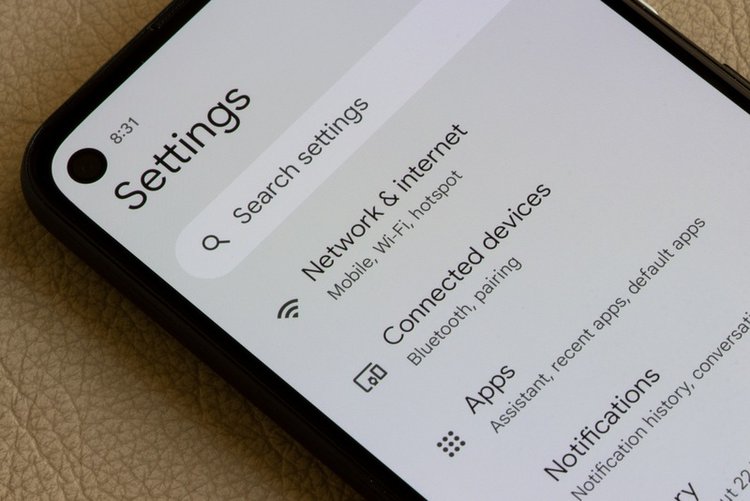
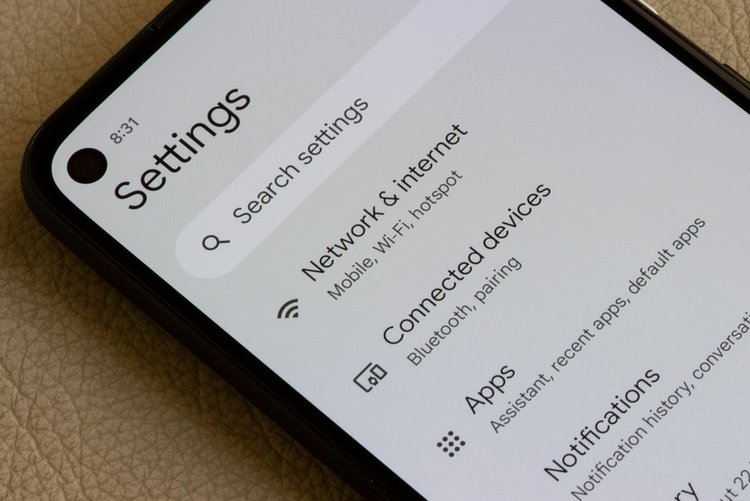
On dual-SIM phones, data often fails because the phone is trying to use the wrong SIM. Go to Settings → Network & internet → SIMs (on some phones: Settings → Connections → SIM manager). Check that Mobile data is set to the SIM that actually has your data package, and that the SIM itself is enabled. If you recently changed SIM slots or added a new SIM, this is the most likely cause.
4. Check data saver and data limit settings
Android can block its own data. In Settings → Network & internet → Data Saver, make sure Data Saver is off, or at least that your browser and WhatsApp are allowed under unrestricted data. Then check Data warning & limit in the same area: if a data limit is set and you have crossed it, Android stops mobile data completely until the next cycle. Turn the limit off or raise it, and data usually returns instantly.
5. Reset the APN settings
The APN tells your phone how to connect to your network's internet. A wrong or corrupted APN is a classic cause of "signals fine, internet dead." Go to Settings → Network & internet → SIMs → Access Point Names (Samsung: Settings → Connections → Mobile networks → Access Point Names). Tap the three-dot menu and choose Reset to default. The phone will reload the correct APN for your SIM automatically. Then toggle Airplane mode once and test again. Only create a manual APN if your network's helpline or official website gives you the exact settings — guessing APN values usually makes things worse.
6. Check the roaming setting
If you are travelling outside your home area or near a border, some phones need Data roaming enabled even within Pakistan on certain networks and areas. You will find it under Settings → Network & internet → SIMs. Turning it on inside Pakistan normally costs nothing extra on local packages, but keep it off when travelling abroad, where roaming charges are real.
7. When the problem is the network, not your phone
Sometimes everything on your phone is correct and the network itself is down or overloaded — during load-shedding, in crowded areas, or during a local outage. Test with another SIM of a different network in the same phone, or ask someone nearby on the same network if their data works. If theirs is also dead, wait and retry later instead of changing settings. If only your SIM fails everywhere, the SIM may be damaged or blocked; visit your network's franchise with your CNIC for a replacement. And if data works in another phone but never in yours, back up your data and consider a network settings reset from Settings → System → Reset options as the last step.
Frequently asked questions
Why does my phone show 4G but no internet?
Usually the data package has finished, the wrong SIM is selected for data, or the APN is incorrect. Check your package first, then the SIM data setting, then reset the APN to default.
Will resetting the APN delete anything?
No. Resetting the APN only restores your network's internet settings to default. Your photos, apps, and accounts are not affected.
Data works on WhatsApp but not in the browser. Why?
Data Saver or a per-app restriction is likely blocking the browser. Turn Data Saver off, or allow the browser under the unrestricted data list in Settings.