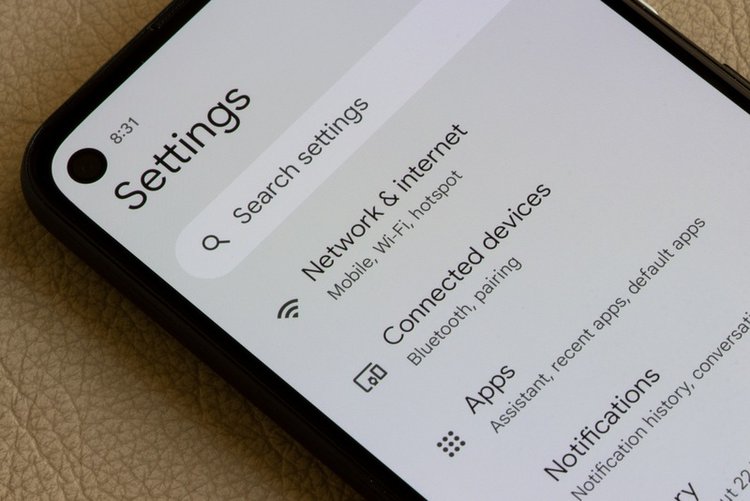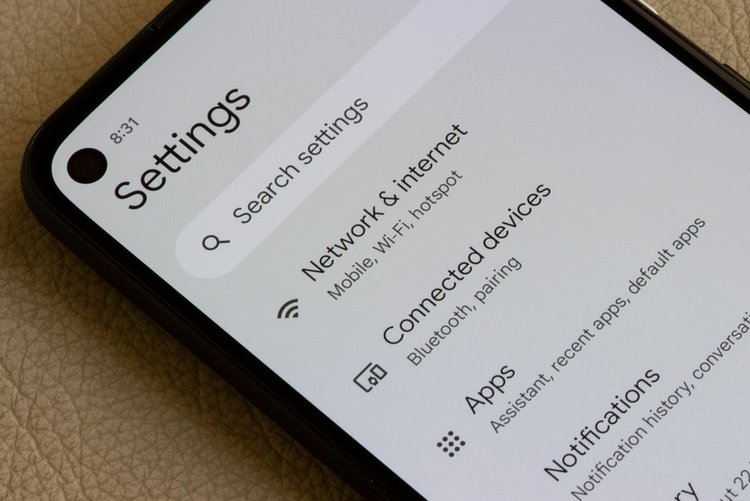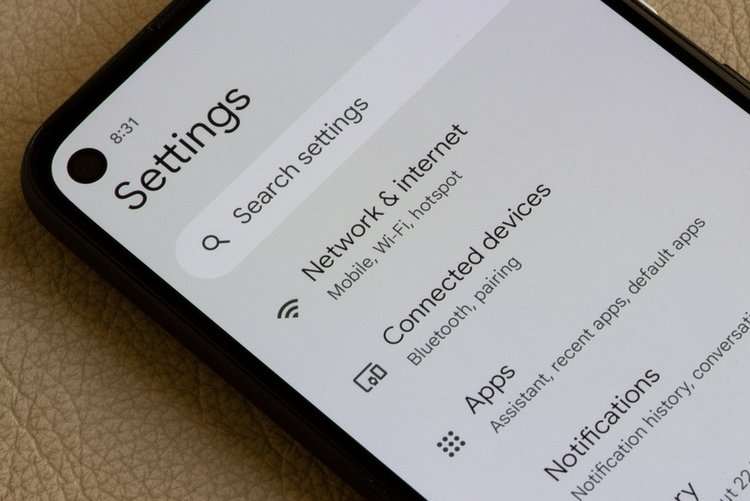
Almost every Android phone sold in the last five years has a built-in screen recorder — no separate app, no ads, no watermark. It is simply hidden in the Quick Settings panel. Here is how to find it on each brand, record with sound, and locate your video afterwards.
1. Open Quick Settings and find Screen Record
Swipe down twice from the top of the screen to open the full Quick Settings panel. Look for a tile called Screen record, Screen recording or a camera-like icon. Tap it, choose your sound options (step 3), and tap Start. A small countdown or floating button appears — recording has begun.
2. Tile missing? Add it from the edit menu
If you do not see the tile, tap the pencil/edit icon in Quick Settings and drag Screen record from the hidden tiles into your active panel. On stock Android (Pixel, Motorola, Nokia) this is where it hides by default. On very old phones (Android 9 or below), built-in recording may genuinely not exist — only then is a third-party recorder app the answer.
3. Choose the right sound option before recording
The start dialog usually offers: No sound, Media sounds (the phone's own audio — game and video sound), or Media sounds and mic (your voice over the screen — best for tutorials and explaining something to family). Pick before you start; you cannot change it mid-recording. Note: some apps like banking apps and some streaming services block recording or record as a black screen — that is their copy-protection, not your phone's fault.
4. Brand shortcuts worth knowing
Samsung: Screen recorder is in Quick Settings; recording quality and selfie-video overlay can be changed in Settings → Advanced features → Screenshots and screen recorder. Xiaomi/Redmi/Poco: there is also a separate Screen Recorder app in the Tools folder with resolution and frame-rate controls. Oppo/Realme/Vivo: look for "Screen recording" in Quick Settings; a floating bubble controls pause and stop.
5. Stop the recording and find the video
Tap the floating stop button, or swipe down and tap the recording notification to stop. Videos save to Gallery/Photos → Screen recordings album, and as files in the Movies/Screen recordings folder. A 10-minute recording can be several hundred MB — send it via WhatsApp as a document or trim it first if it is too large to share.
6. If recordings come out laggy or blurry
Lower the recording resolution in the recorder settings (720p is plenty for sharing), close heavy apps in the background, and keep at least 1–2 GB storage free. A nearly full phone makes every recording stutter.
Frequently asked questions
Does Android screen recording capture internal game sound?
Yes — choose "Media sounds" when starting. If a specific game or app records silent, that app has blocked internal audio capture, which some apps do deliberately.
Where are my screen recordings saved?
In the Gallery/Photos app under a "Screen recordings" album, and as files in the Movies or DCIM/Screen recordings folder depending on brand.
Why is my recording just a black screen?
The app you recorded blocks screen capture for security or copyright — banking apps, some streaming apps and WhatsApp view-once media do this. It is not a fault in your phone.