The biggest mistake people make with a new phone is rushing: they set it up fresh, then discover contacts, photos or WhatsApp chats are still on the old phone — sometimes after it has already been reset or sold. Follow this order and everything moves, verified step by step.
Before you start (10 minutes on the OLD phone)
- Charge both phones above 60% and connect both to the same Wi-Fi.
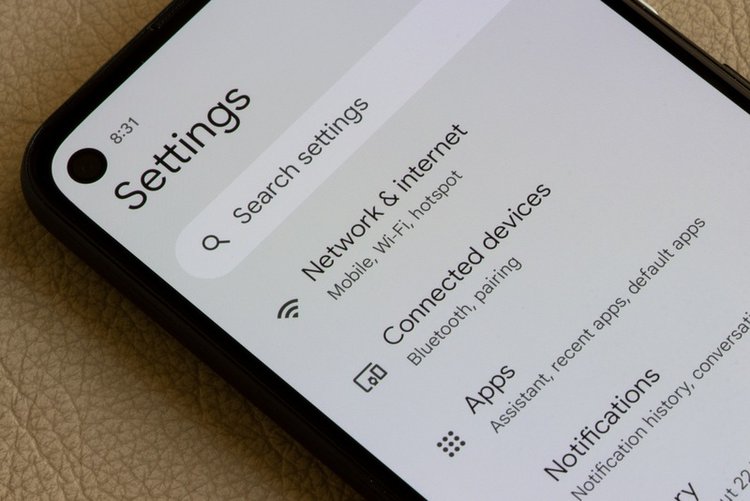
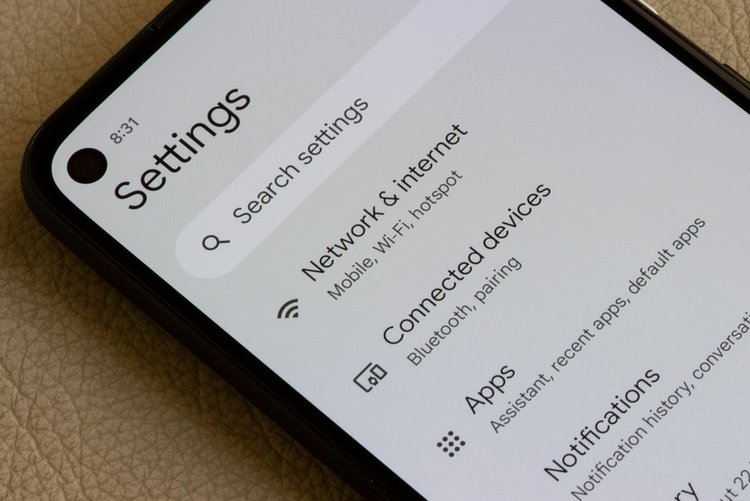
- Contacts: Settings → Accounts → Google — make sure Contacts sync is ON, so contacts live in your Google account, not only on the device.
- Photos: Google Photos → turn on Backup and wait until it says "Backup complete".
- WhatsApp: WhatsApp → Settings → Chats → Chat backup → Back up now to Google Drive, and note the Google account used.
Method 1: Google transfer during setup (works for any Android)
- Turn on the new phone and follow setup until "Copy apps & data".
- Choose to copy from your old phone — by cable (fastest, most complete) or Wi-Fi.
- Sign in with the same Google account as the old phone.
- Select everything: apps, photos, messages, call history, device settings.
- Let it finish on Wi-Fi. Apps download from the Play Store in the background — give it an hour before judging what is "missing".
Method 2: Brand transfer apps (best for Samsung, Xiaomi, Oppo, Vivo, Infinix)
Same-brand and cross-brand tools often move more (including app data and home-screen layout): Samsung Smart Switch, Mi Mover (Xiaomi), Clone Phone (Oppo/OnePlus), EasyShare (Vivo/iQOO). Install the same app on both phones, connect, and select all categories. Cable is faster for large video collections.
What does NOT transfer automatically
- Banking and payment apps (JazzCash, Easypaisa, bank apps): log in fresh on the new phone, complete their verification — this is by design, for your security.
- Downloads folder files and documents saved inside specific apps — copy them via cable/PC or Google Drive manually.
- Two-step verification apps (authenticators): export/transfer them from the old phone before resetting it.
- App logins: you will need passwords again for many apps — keep your password list ready.
Verify before you wipe the old phone — the 7-point check
- Contacts count matches on both phones.
- Google Photos shows your oldest photos on the new phone.
- WhatsApp chats open with full history, including media.
- Call log and SMS are present.
- Your main apps are logged in and working.
- Banking/payment apps activated and tested with a small action.
- Files from Downloads/Documents copied.
Only after all seven: keep the old phone untouched for at least a week as your backup. Then factory reset it (Settings → System → Reset → Erase all data) before giving it away or selling — and remove your Google account first so the next person is not blocked by FRP lock.
Frequently asked questions
I already set up the new phone without copying. Is it too late?
Not necessarily. Google Photos, contacts and WhatsApp restore still work any time by signing in / reinstalling WhatsApp. For a full app-and-data copy, the clean setup transfer requires resetting the new phone and starting setup again — back up anything new on it first.
How long does the transfer take?
With a cable: roughly 15–40 minutes for a typical phone. Over Wi-Fi with 50+ GB of photos and videos, it can take a few hours — start it in the evening on charge and on Wi-Fi.
My WhatsApp backup is on a different Google account. What now?
On the old phone, go to Chat backup and note the account shown. Sign that same account into the new phone (you can have two Google accounts on one phone) before installing WhatsApp, and the backup will be found.